

Summary
- Instagram has introduced Add to grid, allowing tagged photos and videos to appear on the main profile grid without a repost.
Instagram now lets users add photos and videos they are tagged in directly to their main profile grid.
The feature, called “Add to grid”, began rolling out on 10 September 2026 and adds another way to curate a profile without reposting the same content.
For photographers, creators and brands, this means that work, collaborations or photographs published by another account can appear on the main grid, provided the user has been tagged in that post.
How Add to grid works
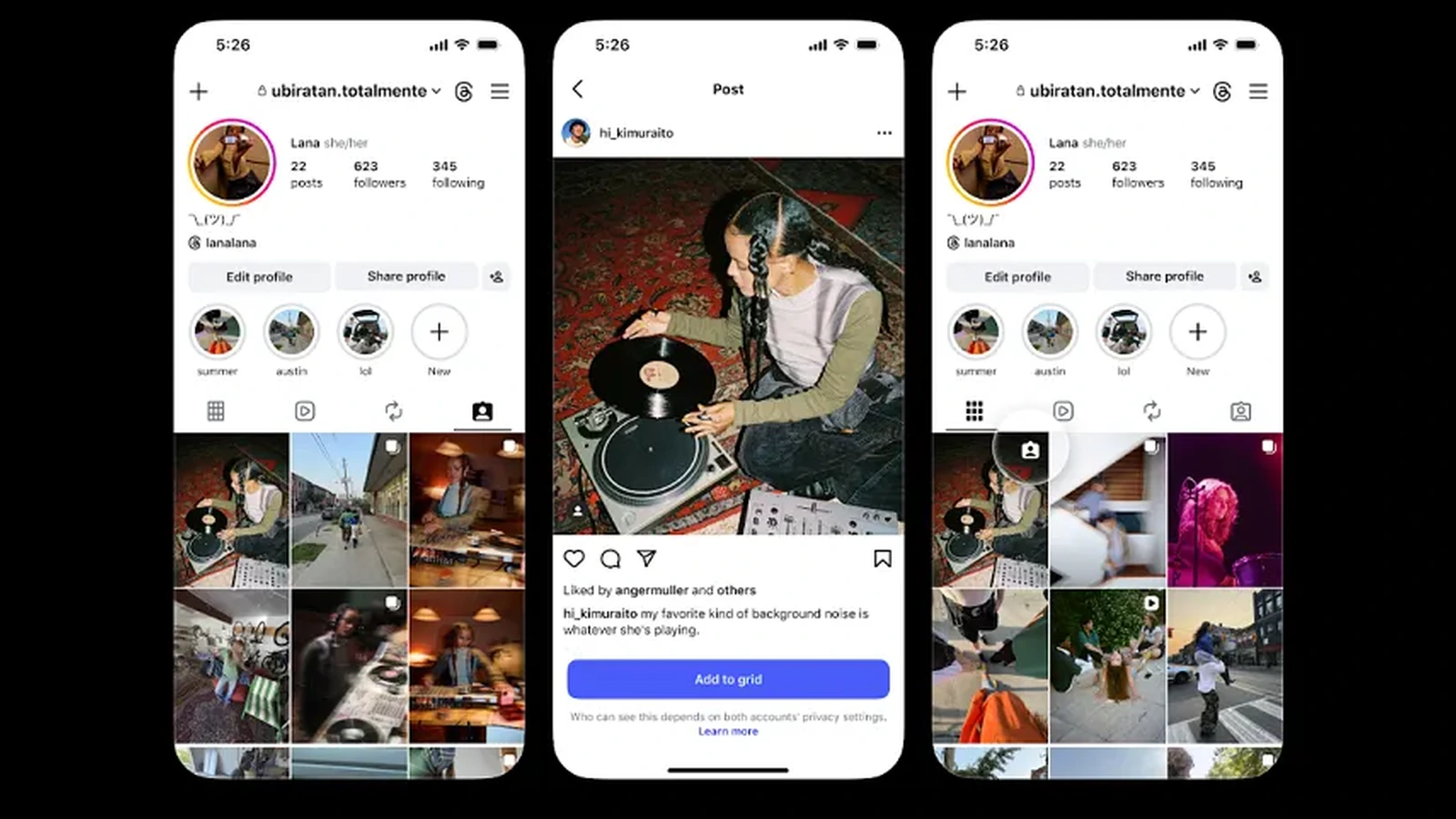
Instagram head Adam Mosseri explained that the option can be accessed from the profile’s Tagged tab by pressing and holding a photo or video in which the user has been tagged. It is also available from the DM notification and from the tagged post’s own menu.
- From the DM notification when someone tags you.
- From the menu on the post in which you are tagged.
- By pressing and holding a post inside your profile’s Tagged tab.
Once added, the tagged post appears alongside regular posts in the profile grid and carries a tag icon on its thumbnail. It does not create a new copy of the post, and the original creator remains the account that published it.
What changes for photographers and creators
The main benefit is that the profile grid can work more like a curated showcase and less like a simple sequence of posts uploaded only by the account owner. A photographer, for example, can feature a collaboration or image published by another account on the main profile without uploading it again.
The new option is not the same as a Collab post: the content still belongs to the original post and is simply displayed additionally on the grid of the account that was tagged. That gives more flexibility to group productions, creator collaborations and content involving several accounts.
Privacy and removing a post from the grid
On the “Add to grid” screen, Instagram notes that who can see the post depends on both accounts’ privacy settings. Adding a post to the grid does not make a private post public.
If the user changes their mind, the tagged post can later be removed from the main grid without deleting the original post or removing it from the Tagged tab. The feature is rolling out gradually, so it may not appear on every account at the same time.
What we think
For creators who use Instagram as a portfolio, the change is more practical than it may initially appear: it lets a collaboration become part of the main profile without a second upload. The important limitation is that the post remains tied to the original account and its visibility continues to depend on the relevant privacy settings.
Frequently asked questions
Can I add a photo or video I am tagged in?
Yes. The new feature applies to photos and videos in which your account has been tagged.
Do I need to repost it?
No. The post appears on the main grid without creating a second publication from your account.
Where is the Add to grid option?
It can appear in the DM notification, in the tagged post’s menu or when you press and hold the post inside the Tagged tab.
Can I remove the post later?
Yes. Removing it from the main grid does not delete the original post or remove it from the Tagged tab.
Will the tagged post be visible to everyone?
Not necessarily. Visibility depends on the privacy settings of both the account that published the original post and the account adding it to the grid.