

Summary
Your own photographs can now appear on your car’s Apple CarPlay display, and the useful part is being able to choose exactly which album passengers will see.
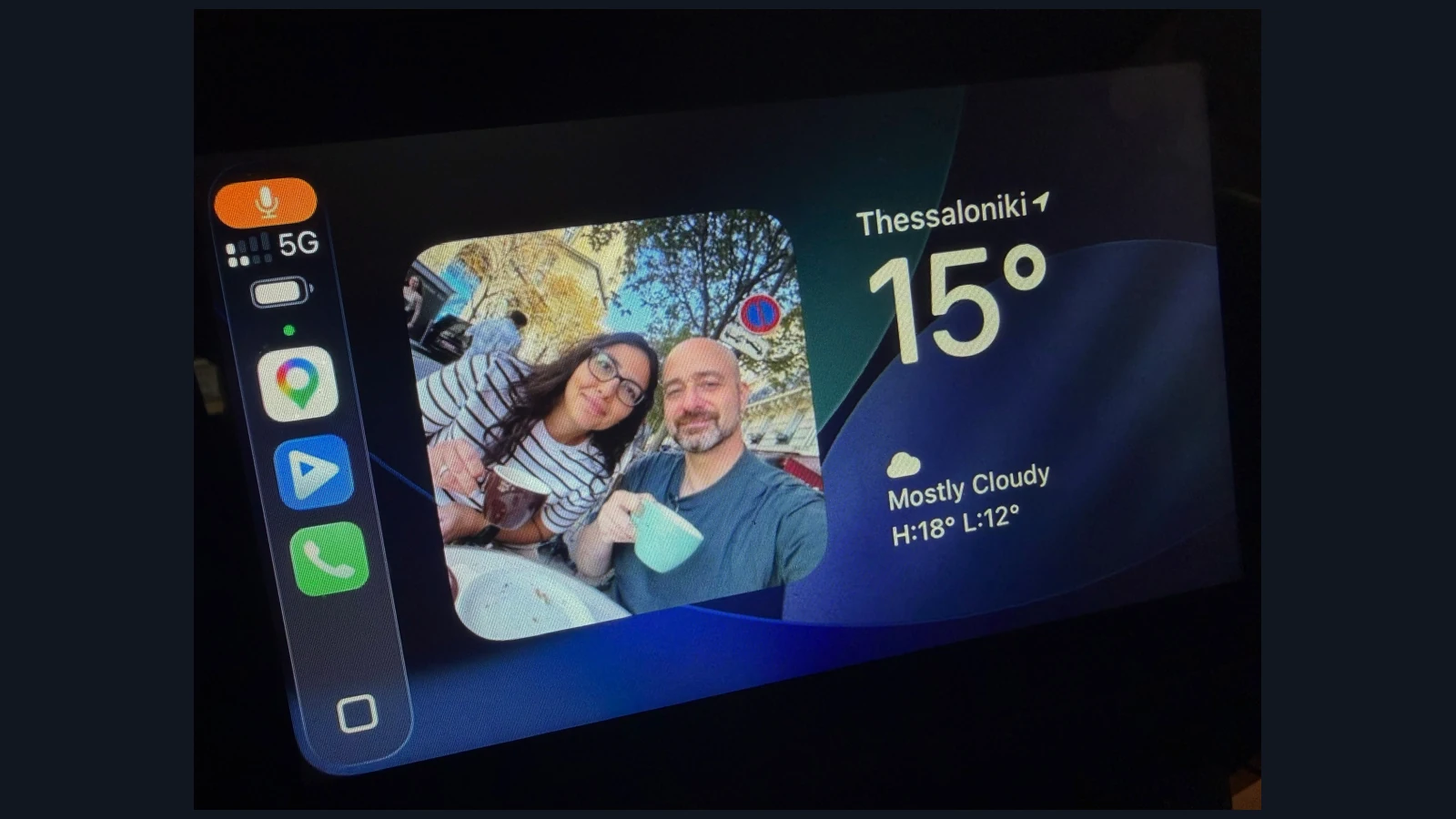
The widgets introduced with iOS 26 allow Photos to appear alongside information such as weather and calendar. We configured it on a real in-car display: a selected photo appeared next to the Weather widget, as shown in our original photographs.
How to display your photos on Apple CarPlay
Park your car and connect your iPhone to CarPlay. On your iPhone, open Settings → General → CarPlay, select your vehicle, then open Widgets.
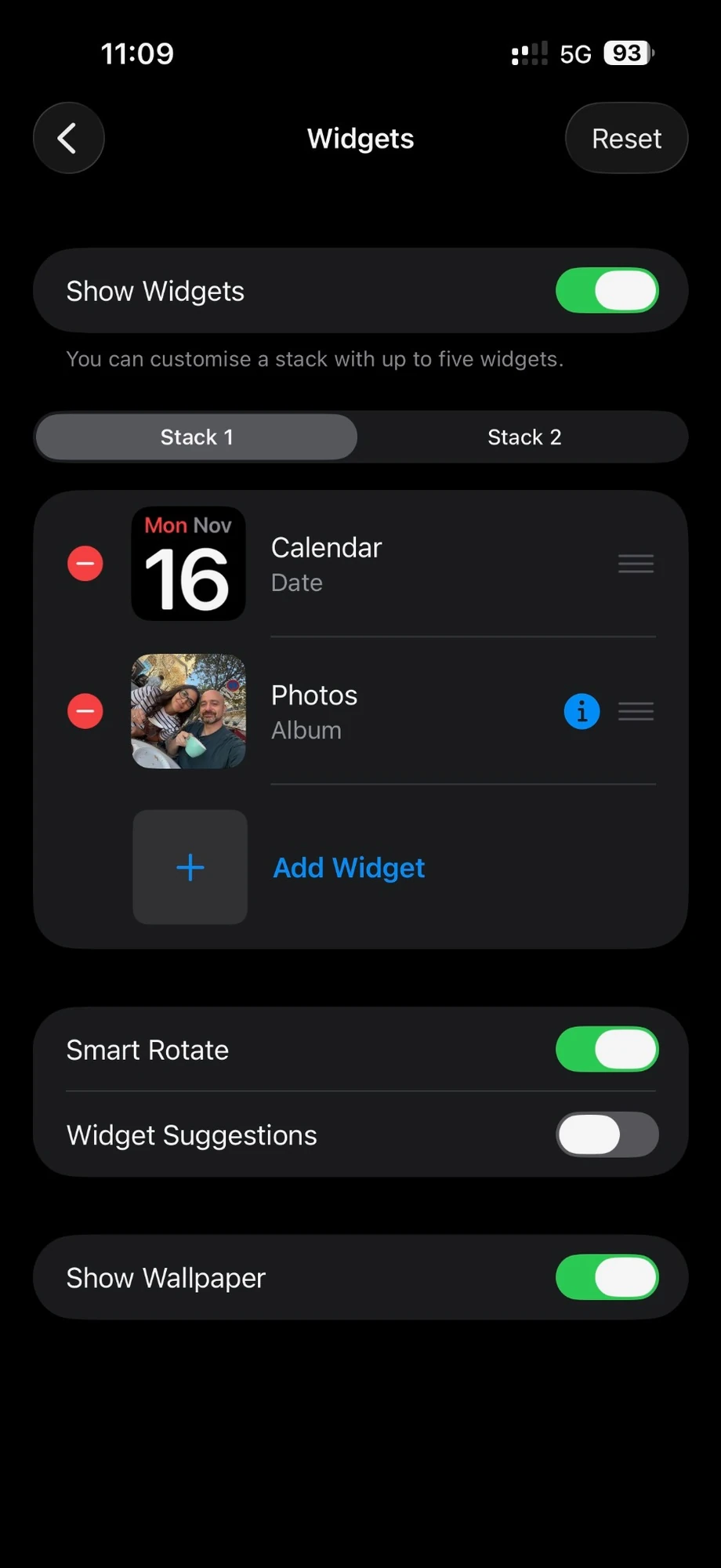
Turn on Show Widgets, select Stack 1 or Stack 2 if available, and tap Add Widget. Find Photos and choose its Album widget. The number of stacks depends on the vehicle’s CarPlay display.
The key step: make an album just for your car
In the iPhone Photos app, create an album such as “Car play” and add only images you are comfortable displaying publicly, from landscapes and travel pictures to selected family moments.
Back in CarPlay settings, tap the blue information (i) icon beside Photos → Album and choose your album. In our example, we selected “Car play”. You can also enable Always Display In Full Colour on this screen.
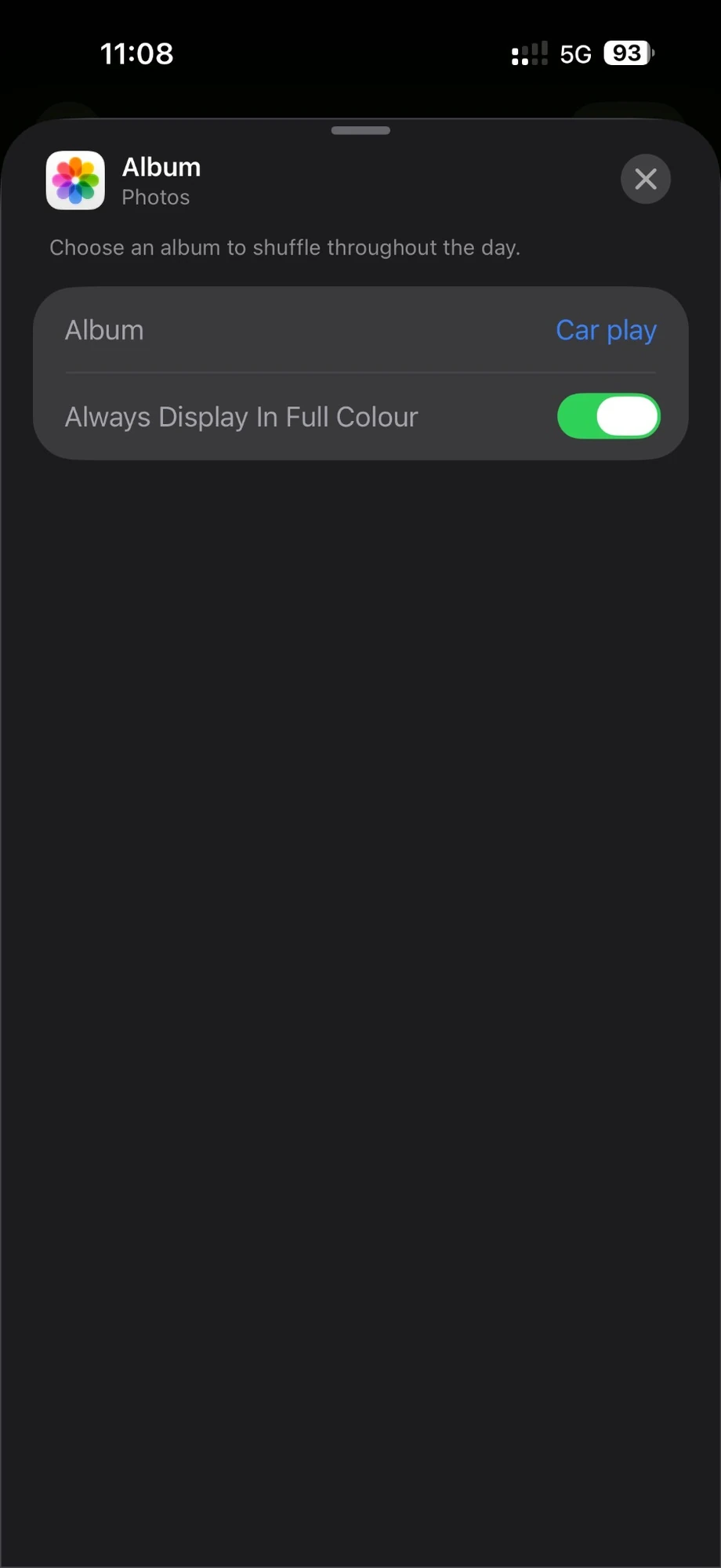
This is the essential privacy control. Rather than letting a featured-content widget pick images, you limit the display to an album you have reviewed. Favorites or a Shared Album may also be available, but remember that others may be able to add pictures to shared albums.
How photos appear and rotate
On your car display, open the CarPlay widgets view. In our test, Photos appeared on one side and Weather on the other. Layout and navigation between stacks vary by vehicle and screen.
Each stack holds up to five widgets. To make Photos more prominent, drag it to the top using the reorder handle beside its name. Smart Rotate can automatically switch the active widget; turn it off if you prefer to select widgets yourself.
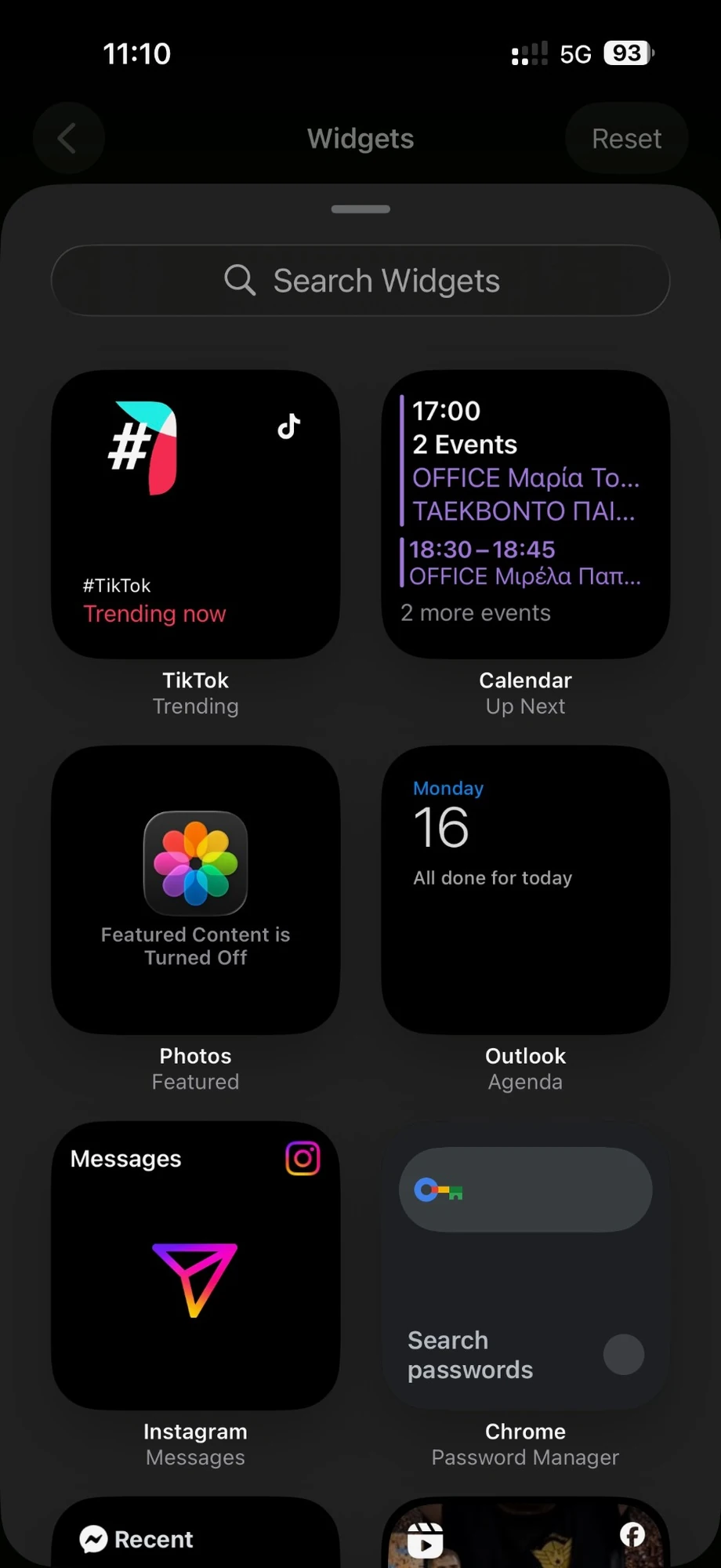
If Photos says “Featured Content is Turned Off”
This message can appear for Photos → Featured when Show Featured Content has been disabled in the Photos app. It does not necessarily stop the separate Photos → Album widget, which can show your explicitly selected album.
This is not a custom CarPlay wallpaper
Photos appear inside a widget, not as a full-screen customizable CarPlay wallpaper. Show Wallpaper controls the widget-view background; CarPlay’s wallpaper options are a separate setting.
This is a personal display feature, not a photo viewer for a moving vehicle. Always configure the album and widgets while parked.
What we think
For photographers, seeing one of our own images on another screen is enjoyable, particularly when parked and waiting for someone. What makes this useful, though, is the dedicated album. It helps prevent a client shoot or a private family image from appearing unexpectedly in front of passengers.
We would select a small set of pictures with uncluttered compositions that work in a compact widget and keep maps visible while driving. A photo can be a pleasant touch, but it should never compete with attention to the road.
Frequently asked questions
Can I display just one photograph?
Photos → Album rotates through the pictures in the selected album. An album containing only one picture limits the choice to that image.
Can passengers see my whole photo library?
Not when Photos → Album is correctly set to a carefully curated album. Review the album and test the display before carrying passengers.
Why do I not have two widget stacks?
Apple states that the number of widget stacks depends on the vehicle’s CarPlay display and layout.