

Summary
- WhatsApp can still compress photos sent in HD quality.
- To deliver the original file on iPhone or Android, use the Document option.
- HD is convenient for everyday chats, while file attachments are preferable for printing and editing.
- Check the format, dimensions and file size when accurate delivery matters.
A photo that looks sharp on your phone can lose noticeable detail when you send it through WhatsApp, even after selecting HD.
The key is understanding two different methods: HD quality for convenient everyday sharing, and sending as a document when the recipient needs the actual file without WhatsApp’s normal photo compression.
Why HD does not mean “original file”
WhatsApp compresses photos sent through its regular media picker to speed up transfers and save space. Standard quality prioritizes smaller files. HD quality preserves more detail, but compression—and sometimes resizing—can still happen.
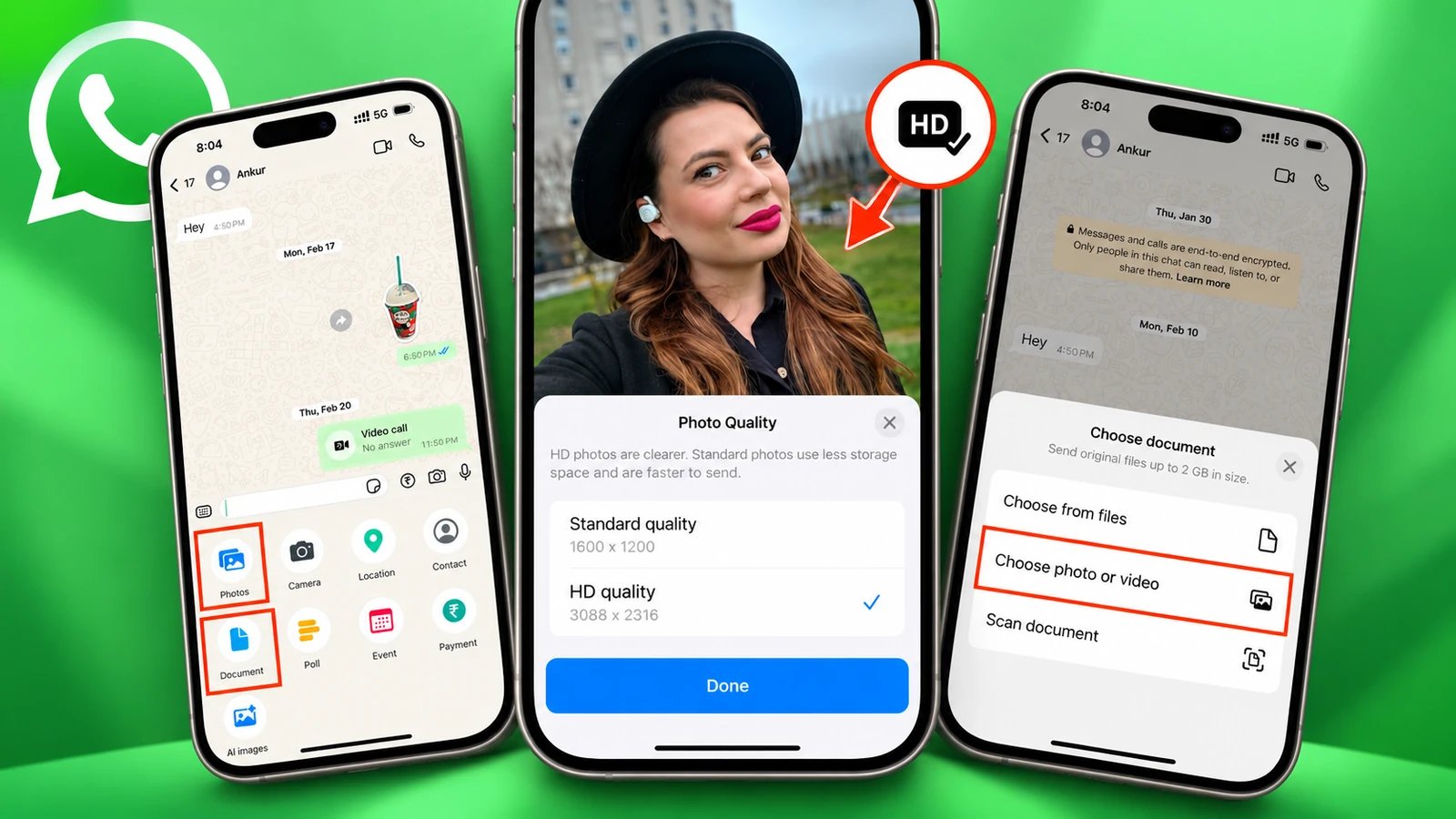
In the example screenshot, the two choices are displayed as 1600 × 1200 and 3088 × 2316 pixels. Those values describe this particular photo; they are not universal resolutions for every image or phone.
That is why seeing an HD label does not mean the recipient received the exact JPEG, HEIC, or RAW file saved on your device.
How to send a photo in HD
For photos that somebody will mainly view on their phone, HD is usually the most convenient choice: the picture remains visible directly inside the chat.
- Open a WhatsApp chat.
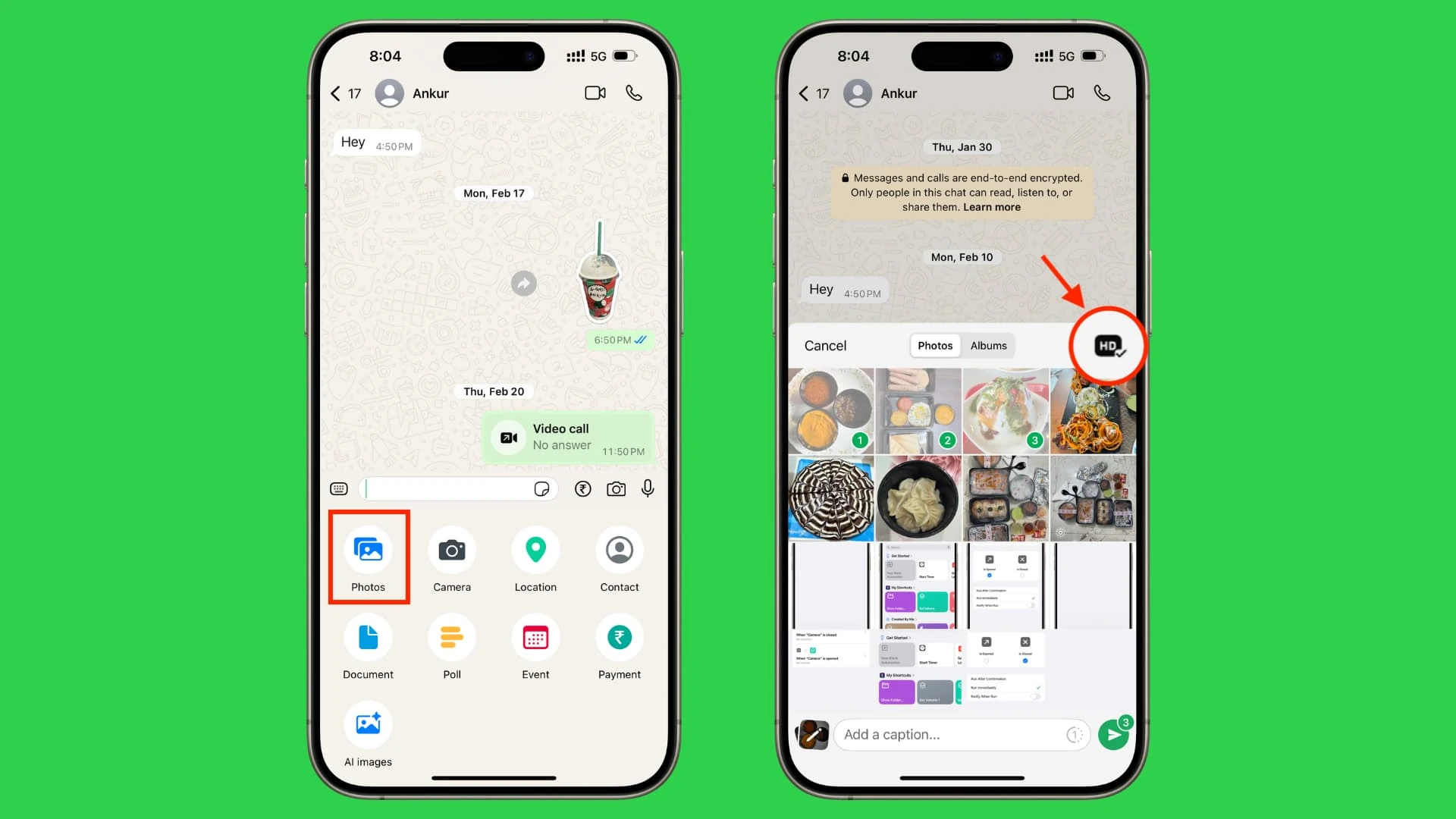
- On iPhone, tap +, then Photos. On Android, tap the paperclip and choose Gallery.
- Choose the photo you want to send.
- Tap the HD icon, where available, and select HD quality.
- Send the photo. An HD label on the message indicates that this quality setting was used.
How to make HD the default
To avoid changing the setting each time, go to WhatsApp Settings → Storage and data → Media upload quality and select HD quality. The setting is available on iPhone and Android, although the location of Settings differs between devices.
You can still choose Standard quality for an individual send. Larger media also use more data and may take longer, particularly on a cellular connection.
How to send the original photo without compression
When a photo is intended for printing, editing, or client delivery, avoid the normal photo picker. Send it as a Document. WhatsApp then treats the image as a file rather than processing it as a regular chat photo.
On iPhone:
- Open the chat and tap +.
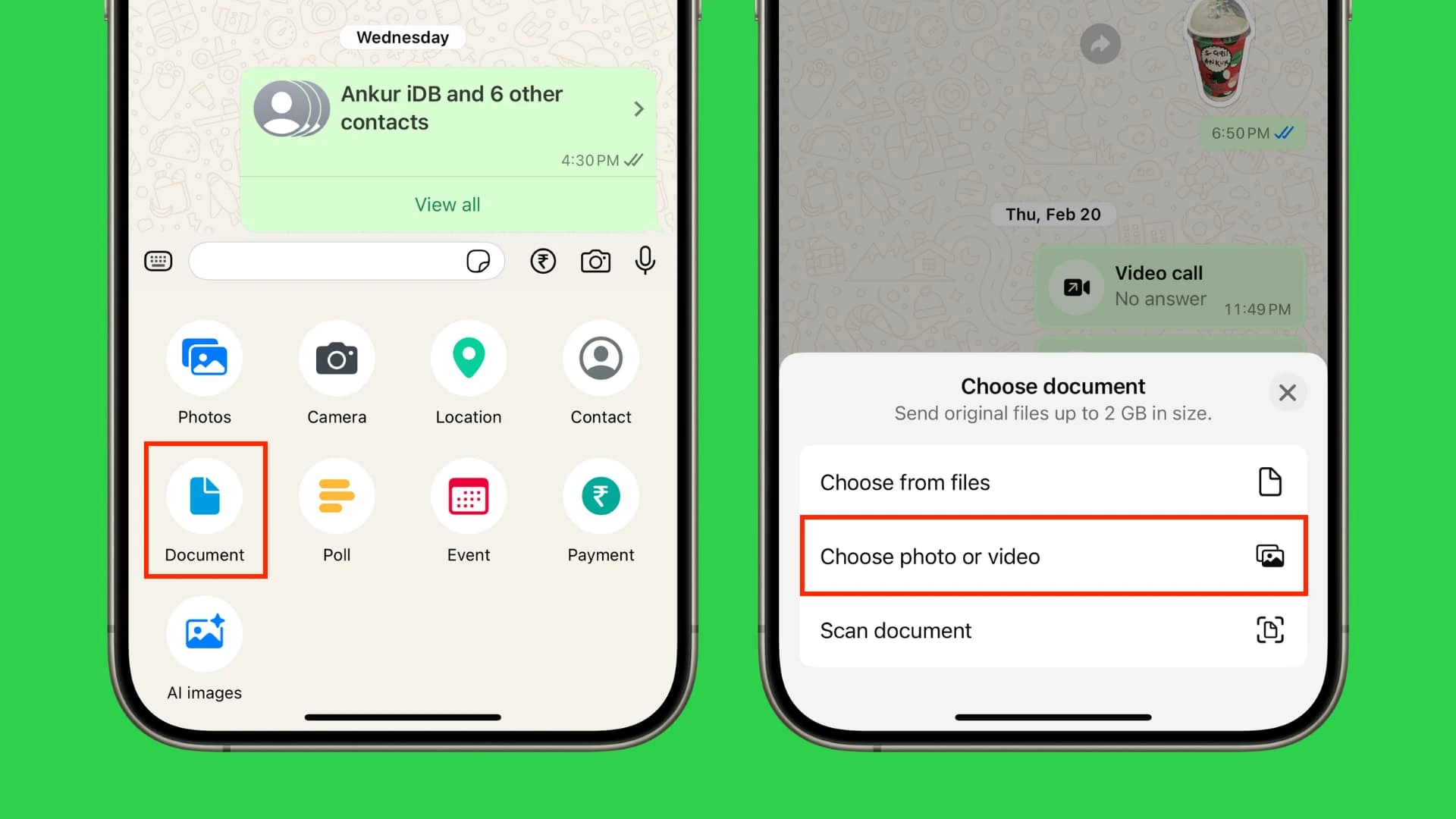
- Select Document.
- Tap Choose photo or video, as shown in the screenshot.
- Choose the image and send it.
On Android:
- Open the conversation and tap the paperclip.
- Choose Document, not Gallery.
- Locate the image in the file picker, for instance in DCIM, Pictures, or Downloads.
- Select and send the file. The exact labels can vary by device.
WhatsApp supports documents up to 2 GB per file. The recipient may need to open the attachment separately instead of seeing a normal in-chat photo preview.
How to verify that the correct file arrived
For an important photo, ask the recipient to download the attachment and compare its filename, format, dimensions, and file size with the original. An HD badge alone does not prove that the file is identical.
For professional handoffs where exact matching matters, comparing the SHA-256 checksums of both files on a computer provides stronger verification. Matching dimensions or similar file sizes do not prove that the underlying data are identical.
Printing, RAW, HEIC and video: what to watch for
Document sharing is useful for JPEG, HEIC, RAW and video files, but it does not guarantee that the recipient’s device can open every format. When sending HEIC or RAW, make sure the recipient knows the format or supply a separate compatible JPEG while retaining the original.
Higher-quality transmission cannot fix a blurry or poorly exposed capture. Several common smartphone photography mistakes need to be addressed before you hit Send.
There is another layer when the final destination is social media: processing by the platform itself. The same issue comes up with Instagram Reels losing video quality, where the exported file also makes a difference.
What we think
For a holiday photo that someone will view on their phone, HD is generally the sensible choice. It makes sharing easier without turning every conversation into a pile of large attachments.
But when we are sending a finished photograph to a designer, a file for a fellow creator to edit, or images intended for client printing, “I tapped HD” is not a proper delivery workflow. We would use Document, give the file a clear name and confirm that the recipient can open it. Those small steps avoid the familiar “why is this photo soft?” exchange.
Frequently asked questions
Does WhatsApp HD always preserve the original resolution?
No. It can preserve more pixels and detail than Standard quality, but WhatsApp may still compress the image and sometimes resize it.
Can I send HEIC or RAW without converting it to JPEG?
Sending as a document preserves the file rather than treating it as a normal chat photo. You should still verify that the recipient can open the format.
Can I use HD quality for WhatsApp Status photos?
No. According to the WhatsApp Help Center, HD media is not currently available for Status updates or profile pictures.