

Summary
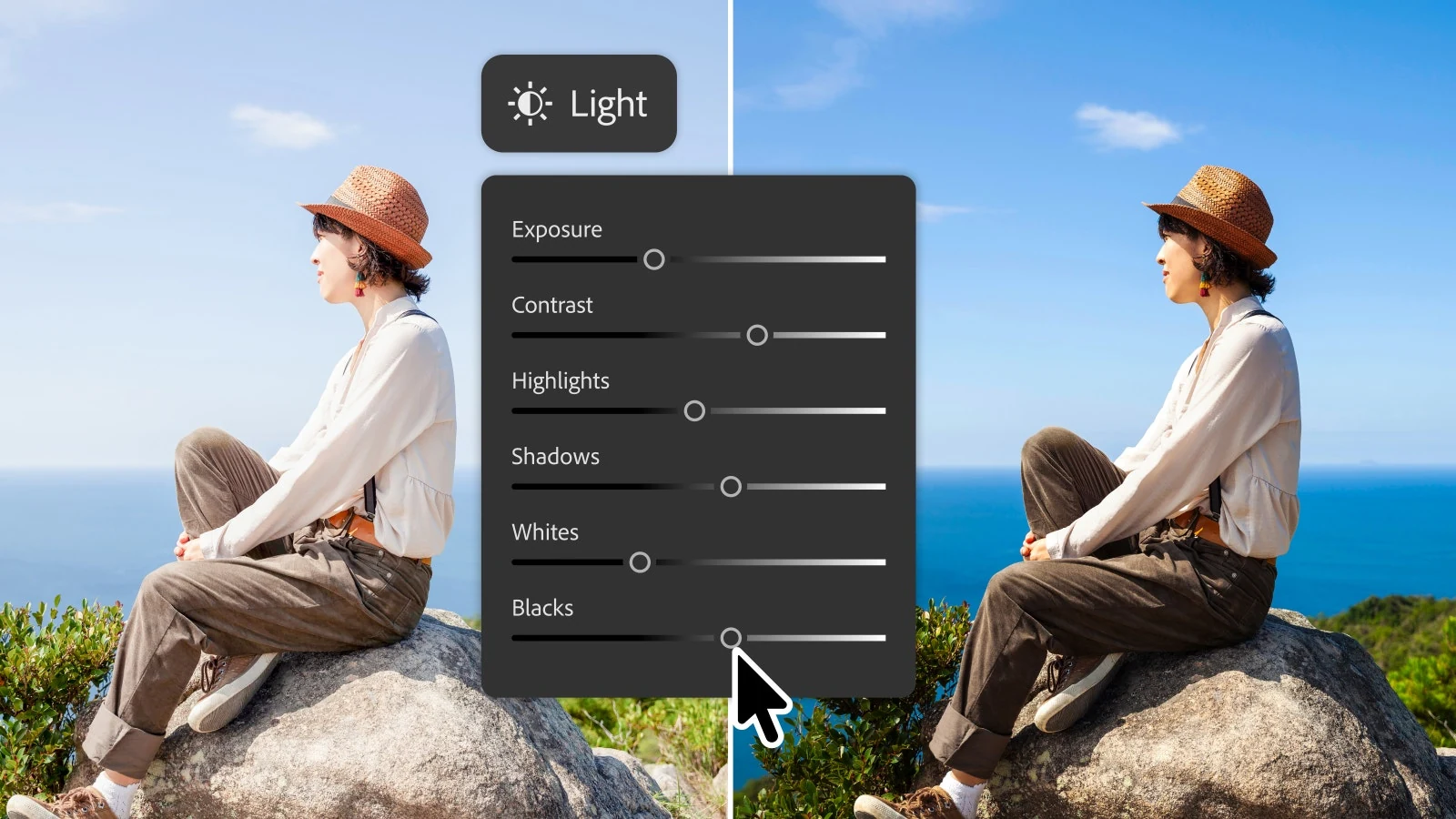
- The Light Adjustment Layer controls Exposure, Contrast, Highlights, Shadows, Whites and Blacks
- Instruct Edit with Masks limits AI changes to the selected area
- Markup adds visual instructions with lines, arrows and shapes
- AI Assisted Editor enters beta with tools ranging from Generative Fill to Upscale
- What the Light Adjustment Layer does
- Instruct Edit with Masks limits the instruction
- Markup uses drawings to guide AI
- AI Assisted Editor enters beta
- Dynamic Text and Adobe Stock inside Photoshop
- How the daily workflow changes
- Availability and important cautions
- What we think
- Frequently asked questions
Adobe has announced one of Photoshop’s most substantial recent updates, adding a Light Adjustment Layer for non-destructive tonal corrections and several AI tools designed to give users more control through masks, visual instructions and assisted workflows.
The Light Adjustment Layer brings Camera Raw-style controls directly into Photoshop’s layer stack: Exposure, Contrast, Highlights, Shadows, Whites and Blacks, all stored in a separate adjustment layer. It arrives alongside Instruct Edit with Masks, Markup, Dynamic Text improvements, direct Adobe Stock access and the beta version of AI Assisted Editor.
The update attempts to connect two distinct workflows: conventional controlled editing with layers and masks, and newer natural-language editing. For professional photographers and retouchers, that matters only when results remain editable, can be restricted to specific areas and do not silently replace the original pixels.
What the Light Adjustment Layer does
The new layer collects six fundamental tonal controls: exposure, contrast, highlights, shadows, whites and blacks. Instead of opening a separate filter or permanently applying changes, the settings remain in an independent layer that can be modified, disabled, blended, given a lower opacity or restricted with a mask.
The controls are familiar to Lightroom and Camera Raw users, but placing them inside the layer stack changes the practical workflow. A Light Adjustment Layer can sit above a specific group, combine with blend modes and drive local corrections without converting the whole document to a Smart Object.
It does not replace Curves or Levels. Curves still provides more precise control over the tonal curve and colour channels, while the new layer is faster for broad exposure and highlight/shadow corrections. Its advantage is speed and familiar controls, not a new way of generating pixels.
Instruct Edit with Masks limits the instruction
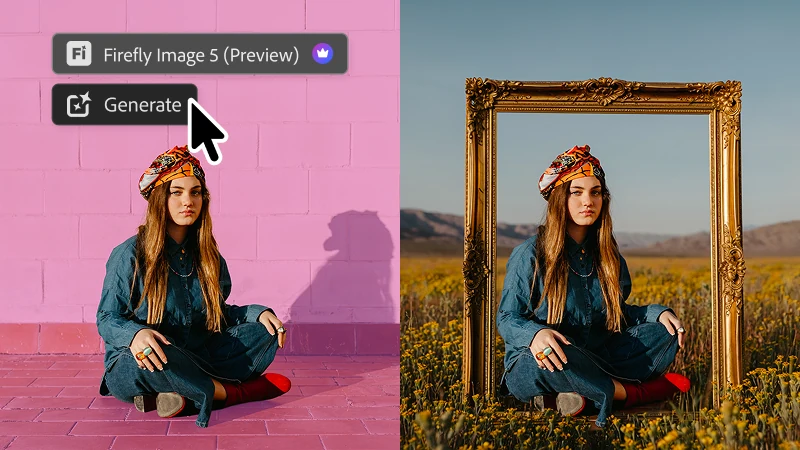
Instruct Edit with Masks lets the user describe a change in natural language and use a mask to define where it is allowed to happen. Adobe says the unmasked area remains untouched, addressing one of generative editing’s core problems: unwanted changes outside the intended subject.
The feature uses Firefly Image 5 and can help when replacing an object, adding detail or changing part of a background. The mask remains critical. A rough selection may create poor edges, inconsistent lighting or geometry, so close inspection is still required.
Markup uses drawings to guide AI
Markup adds a second kind of instruction beyond text. Users can draw lines, arrows or shapes over the image to show where something should move, appear or change. This visual guidance reduces ambiguity, particularly in compositions containing several similar objects.
Markup is not a final drawing tool but a temporary language for communicating with the model. Its value depends on how faithfully it follows spatial instructions and preserves perspective, shadows and texture. For complex professional composites, traditional selections and transforms remain more predictable.
AI Assisted Editor enters beta
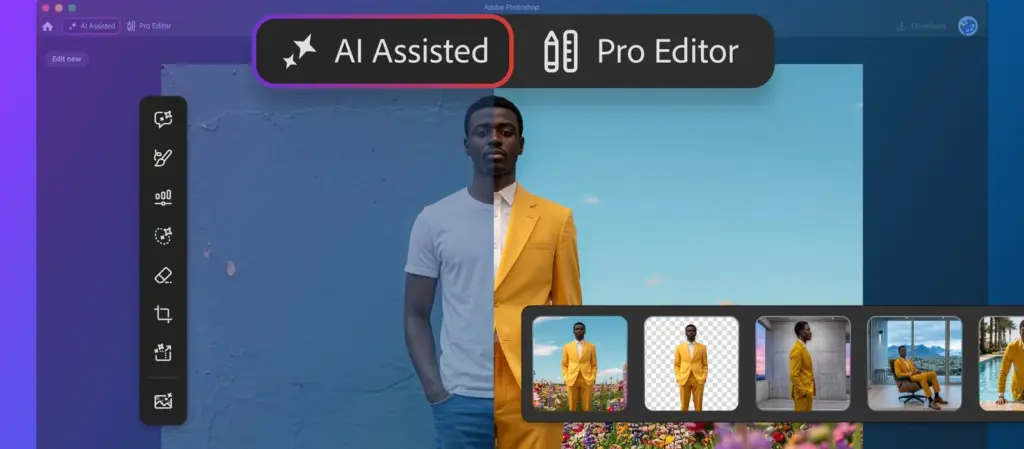
Adobe is also introducing AI Assisted Editor in beta, a workspace where users can request a sequence of actions rather than perform each step manually. Listed capabilities include Prompt to Edit, Remove Background, Generative Expand, Remove Tool, Generative Fill, Generative Upscale and AI Markup.
Prompt to Edit also appears in the Pro Editor through the contextual task bar, and Adobe says results are created in generative layers. That separation matters because new content remains apart from the original and can be compared, removed or masked. The beta label, however, means it should not be assumed stable or suitable for every production task.
Dynamic Text and Adobe Stock inside Photoshop
Dynamic Text now allows text to extend along custom shapes and paths. For designers and social-content creators, that can reduce manual steps in logos, posters and product graphics while keeping the text editable.
More than 900 million Adobe Stock assets are also available through a docked panel. Searching and previewing can happen without repeatedly moving to a browser, although each asset’s use still depends on its licence and the user’s plan. Being visible inside Photoshop does not make every item free.
How the daily workflow changes
For photographers, the Light Adjustment Layer is likely to provide the greatest everyday value because it solves a common problem without generative AI. Exposure or shadow corrections can remain reversible and combine with a face, sky or product mask.
Instruct Edit and Markup are more useful when the intention is easy to describe but slow to execute manually. In photojournalism, documentary work and competitions with strict rules, generative changes may be prohibited or ethically problematic. Creators need to understand the rules, retain the original and disclose material AI alterations where required.
The update extends Adobe’s earlier move to bring Clarity, Dehaze and Grain into Photoshop 27.3 as adjustment layers. The direction is now clear: more controls that once lived in filters or external panels are becoming persistent, non-destructive layers.
Availability and important cautions
Adobe presents these features as part of Photoshop’s current evolution, but availability may differ by application version, account, region and rollout. AI Assisted Editor is explicitly labelled beta, while Firefly features may consume generative credits according to a Creative Cloud plan. Users should verify their installed version and account terms before production use.
What we think
The Light Adjustment Layer is the most meaningful addition because it improves everyday editing without asking users to surrender control to a model. The AI tools become more useful through masks, visual guidance and separate layers, but still require critical review. Photoshop’s best direction is not simply more automation; it is more reversibility, clearer targeting and better correction.
Frequently asked questions
Does the Light Adjustment Layer permanently change the image?
No. It is a separate adjustment layer and its settings can be changed or removed at any time.
Does it replace Curves and Levels?
No. It is faster for broad tonal controls, while Curves and Levels remain better for precise or channel-specific corrections.
What does Instruct Edit with Masks do?
It combines a written instruction with a mask so generative editing remains within the selected area.
Is AI Assisted Editor ready for professional production?
Adobe is releasing it as a beta. It may accelerate work, but results must be checked and users should retain originals while respecting licensing and editorial rules.