

Summary
- White balance helps your phone show natural colours in different lighting.
- Auto works well for most everyday photos.
- Some Android phones offer simple presets for sun, clouds and indoor light.
- If your camera has no such setting, you can correct the colours afterwards.
- What is white balance in simple terms?
- Why does Auto sometimes get it wrong?
- The simple presets: sun, clouds, shade and light bulbs
- Your indoor photo looks yellow: what can you do?
- Where do you find white balance on Android?
- What about iPhone?
- No white balance control? Fix the photo afterwards
- When should you change anything, and when should you leave Auto alone?
- What we think
- Frequently asked questions
Do faces look yellow in your smartphone photos even though they look perfectly normal in real life? There is a camera setting that can help, and you do not need to know photography to understand it: white balance.
White balance helps your camera show natural colours under different kinds of light. Your phone normally handles this automatically, but sometimes it needs a little help.
What is white balance in simple terms?
Think of a white shirt. It looks white in daylight, but under a warm indoor lamp it may look yellow in a photo. Your phone tries to work out the colour of the lighting and compensate so that the shirt, skin and everything around them look natural.
That process is called white balance (WB). It changes the colours in the image rather than simply making it brighter or darker. Our beginner’s photography terminology guide explains other everyday camera concepts.
Why does Auto sometimes get it wrong?
Automatic white balance, or Auto WB, works well in most situations. There is no reason to turn it off every time you open your camera.
It can struggle in a room with yellow indoor lighting, in deep shade or when a face receives both window light and lamp light. That can produce photos that are too yellow or too blue, even when the scene looked fine to your eyes.
The simple presets: sun, clouds, shade and light bulbs
Some smartphones have a WB menu with small icons or ready-made settings called presets. You do not need to enter technical numbers. Just choose the kind of lighting you are using.
| Camera option | When to try it |
|---|---|
| Auto | For most everyday photos |
| Sun / Daylight | When shooting outdoors in sunshine |
| Cloudy | When the sky is overcast |
| Shade | When your subject is in shade |
| Bulb / Tungsten | With traditional warm incandescent lighting |
| Fluorescent | Under matching fluorescent lighting |
Not every phone has every preset, and modern LED bulbs do not always behave like traditional incandescent bulbs. The final check is simple: do white objects and skin tones look more natural? If not, switch back to Auto.
Your indoor photo looks yellow: what can you do?
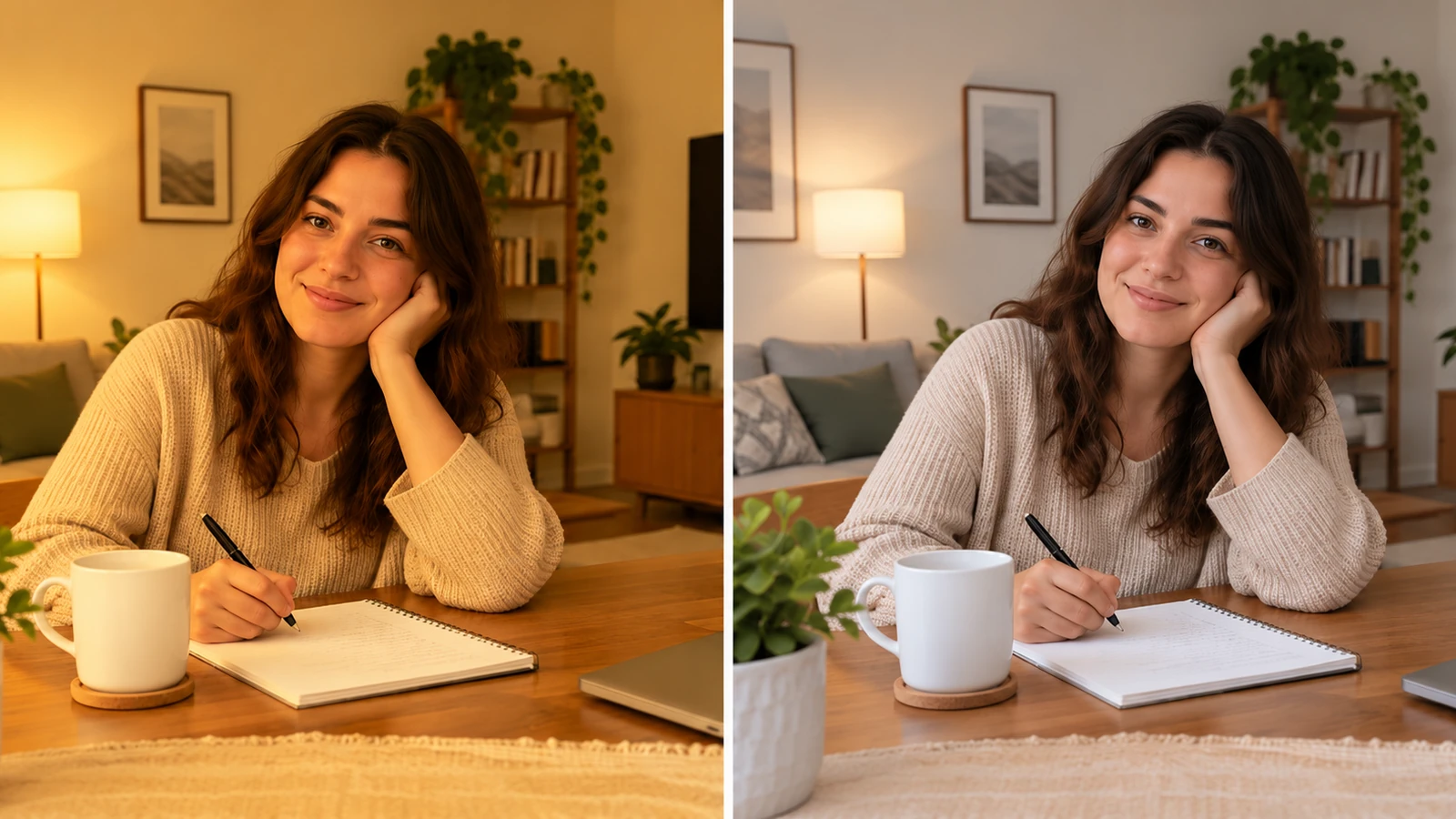
A common example is a portrait in the living room. It looks as though a yellow filter has been placed over everything. The article illustration shows the same scene with a strong yellow cast and with more natural colours. It is an illustration, not a test shot from a particular phone.
- First, make sure the camera is on Auto and take a photo.
- If there is a WB control, try the light-bulb option when it matches your lighting.
- Compare the face and a white object. Keep whichever setting looks most natural.
- If it still looks wrong, try window light or turn off one of the different lamps in the room.
Where do you find white balance on Android?
Samsung Galaxy: on models with Pro mode, open Camera → More → Pro and look for WB. Depending on the phone, you may have named presets or a simple slider. Not every Galaxy has the same controls.
Xiaomi: on models with Pro mode, open Camera → Pro → WB. Xiaomi describes options for sun, clouds and light bulbs. The actual interface varies by device.
Other Android phones: look for Pro, Manual, WB or White Balance in the camera app. Some phones only have a slider for warmer or cooler colours. If you cannot find it, the default camera may not offer manual adjustment.
What about iPhone?
On the iPhone 17 Pro Max, the standard Camera app does not have a menu of white-balance presets for still photos. You do not need to search through Settings for a hidden option. You can let the phone manage colours automatically or make a simple correction after taking the photo.
For video, you can enable Settings → Camera → Record Video → Lock White Balance. This helps keep colours more consistent during recording, without requiring you to choose a lighting type. Apple’s Final Cut Camera app offers more video controls.
No white balance control? Fix the photo afterwards
Often the simplest solution is already on your phone. Open your photo, tap Edit and look for a colour control such as Warmth. If the picture looks too yellow, lower the warmth a little. If it looks too blue, raise it a little. You do not need to change every slider.
On Android, Google Photos includes a Warmth adjustment. On iPhone, the Photos app offers tools for adjusting colour. Names and positions may change between app versions.
When should you change anything, and when should you leave Auto alone?
If the photo looks natural, do nothing. If images from the same room repeatedly look yellow or blue, try a preset. If you are recording video and colours keep shifting as you move, white-balance locking may help if your phone offers it.
One exception worth remembering is sunset. You do not necessarily want to remove the orange glow: that warmth might be exactly what makes the photo beautiful. The goal is not to make every picture look identical, but to capture the atmosphere as you saw it or want to show it.
What we think
White balance is one of those features that you do not need to study in technical detail to take better smartphone photos. You simply need to recognise the problem: why skin looks yellow, why white looks blue, and when the lighting is responsible.
For most people, Auto is the right place to start. If colours do look wrong, simple presets with a sun, cloud or bulb are much easier than advanced camera controls. And if your phone has no such menu, editing the photo’s colour afterwards is a perfectly sensible solution.
Our advice is not to miss the moment because you are searching for a setting. Take the photo, then learn to recognise when a small correction will help.
Frequently asked questions
Should I always keep Auto White Balance on?
For most photos, yes. Change it only when the colours visibly look wrong or when you need a consistent look across several shots.
Why do my photos look orange indoors?
Warm lamps often give off yellowish light that your phone may not fully compensate for. Try different lighting, the bulb preset if available, or a small colour correction afterwards.
Do I need another app if my camera has no White Balance option?
Not necessarily. You can keep shooting with automatic settings and adjust the warmth using your phone’s photo editor afterwards.