

Summary
If Windows 11 File Explorer shows generic icons instead of RAW photo thumbnails, the cause may be a thumbnail setting, missing support for the format, or the Windows thumbnail cache.
This can affect Sony ARW, Canon CR2/CR3, Nikon NEF and Fujifilm RAF files, especially after upgrading to a newer camera. A few targeted checks can identify the problem without modifying the original images.
1. Install Microsoft Raw Image Extension
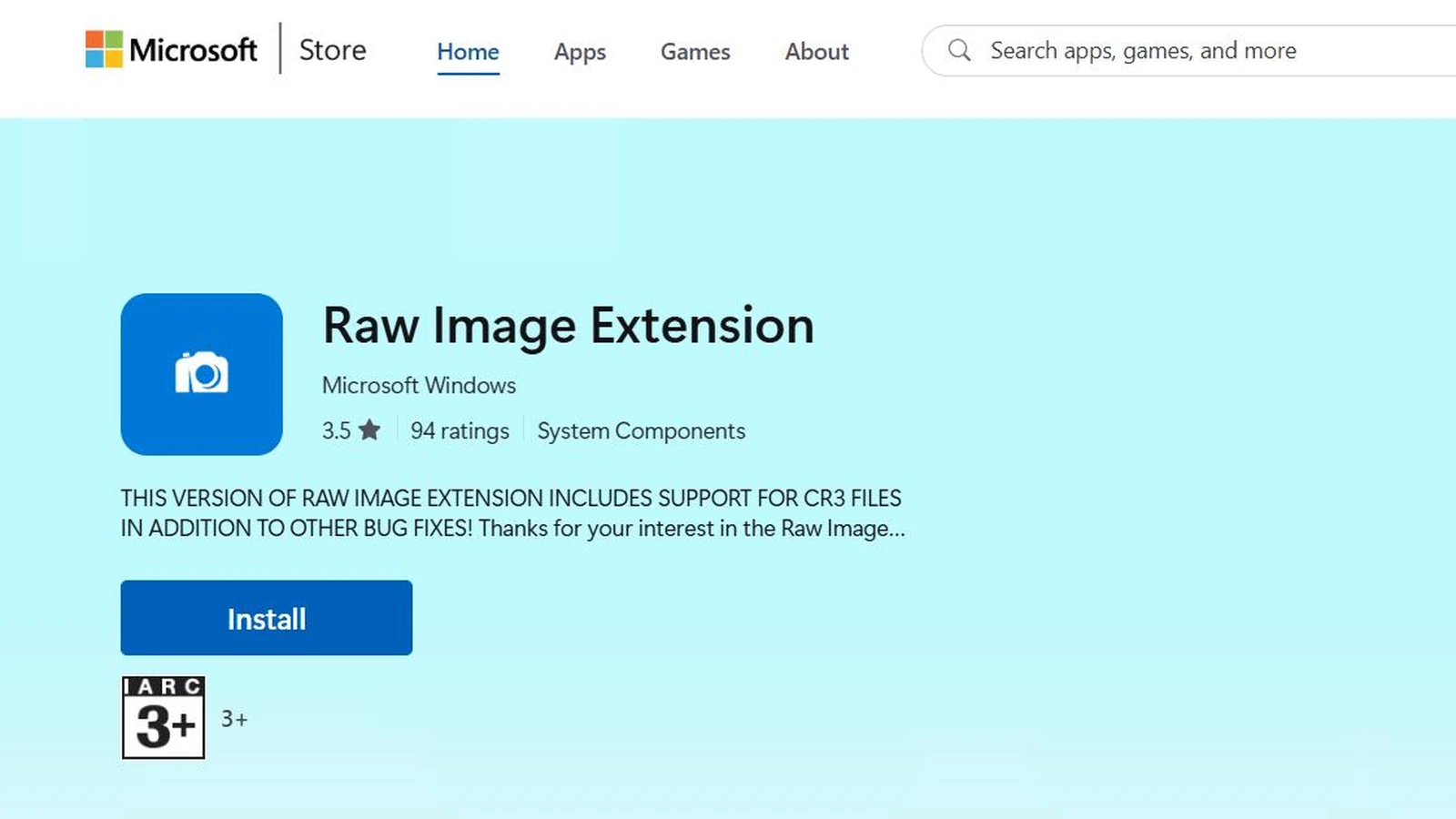
Start with Raw Image Extension, Microsoft’s official component for displaying supported RAW files, thumbnails and image information in Windows. Open its Microsoft Store page, select Install or update it if already installed, then close and reopen File Explorer.
The extension’s listing mentions CR3 support, but that does not guarantee support for every RAW file from every new camera or every compression variant. Compatibility depends on the decoder and the installed extension version.
More information here.
2. Make sure thumbnail display is enabled
In a photo folder, choose View → Large icons or Extra large icons. Details and List views are not intended to display large photo thumbnails.
Next, open the three-dot menu and choose Options → View. Make sure Always show icons, never thumbnails is unchecked, then select Apply and OK. If even JPEG thumbnails are missing, this is one of the first settings to check.
3. Clear the thumbnail cache
If thumbnails previously worked or appear incorrectly, the cache may be stale. Search for Disk Cleanup in Start, select the Windows drive (usually C:) and tick only Thumbnails if you want to clear just that cache. Confirm and reopen the folder.
Windows will try to regenerate thumbnails. This does not remove RAW photos, but it cannot add support for an unsupported camera format. Avoid deleting arbitrary system files or installing outdated codec packs from unknown websites.
4. When only newer RAW files are affected
If JPEG files and RAW files from an older camera display normally but newer ARW, CR3 or NEF files do not, the likely issue is compatibility with that specific camera or RAW variant, rather than a general File Explorer failure. Compare one file from an older model, one from the new model, and a JPEG from the same shoot if available.
The Sony α7 V is a useful example of how new RAW options and processing workflows evolve. Support in the camera maker’s software does not automatically mean File Explorer can generate thumbnails for the same files.
Check Settings → Windows Update and Microsoft Store → Library → Get updates. If thumbnails still do not appear for that RAW variant, use an alternative viewer while waiting for compatible decoder support.
5. Sony’s official alternative and other RAW viewers
For Sony ARW files, Sony recommends Imaging Edge Desktop. Its Viewer component can display and organize supported RAW files, while Edit supports RAW processing. This is useful when File Explorer cannot generate thumbnails, but installing the software does not necessarily enable thumbnails inside File Explorer itself.
For other camera brands, use the manufacturer’s viewer or an up-to-date photo manager, after checking its list of supported cameras. Changing the default application for opening RAW files does not automatically fix Explorer thumbnails.
More information here.
How to narrow down the cause
| What you see | What to check first |
|---|---|
| Even JPEG thumbnails are missing | Folder view and Always show icons setting |
| Multiple RAW formats have no thumbnails | Raw Image Extension and updates |
| Only files from a new camera fail | Support for that camera/RAW variant |
| Thumbnails are incorrect or slow to appear | Thumbnail cache and restarting Explorer |
What we think
After a shoot with hundreds of RAW images, you want to open a folder and recognize your frames immediately. A sea of identical file icons forces photographers to launch another application even for a basic first pass.
Installing Raw Image Extension is a sensible first step, but it is not a universal fix. With newer cameras in particular, distinguishing a Windows setting from missing decoder compatibility prevents unnecessary reinstalls and questionable codec downloads.
When the job needs to move forward now, an updated RAW viewer is the practical workaround. Keep the source files intact: a missing thumbnail is neither a reason to convert everything to JPEG nor proof of file corruption.
Frequently asked questions
Does Raw Image Extension support every camera?
No. It supports particular RAW formats and versions. New cameras and compression modes may require updates.
If Lightroom opens a RAW file but Explorer does not show its thumbnail, is the file damaged?
Not necessarily. Applications can use different decoders. A valid file may open in one application and have no Explorer thumbnail.
Does clearing the thumbnails cache delete my photos?
No. The Thumbnails option in Disk Cleanup removes temporary previews, not source files. Check every other selected cleanup category before confirming.